How to Configure SAP TM Freight Unit Building Rule (FUBR) Using Shipping Conditions in BRF+
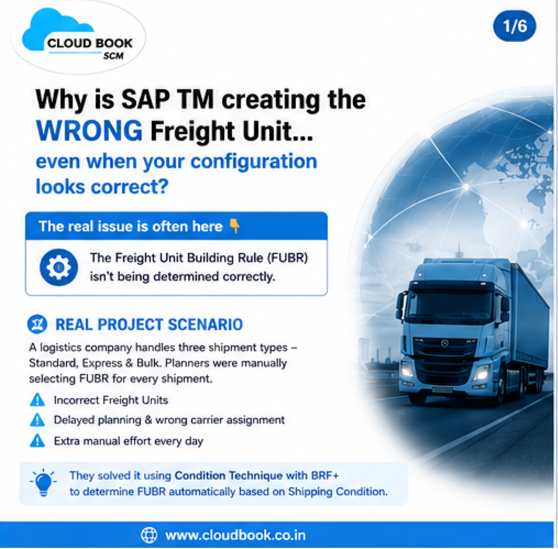
Why is SAP TM creating the WRONG Freight Unit… even when your Delivery, Shipping Condition, Product, and Master Data look correct?
Many SAP TM consultants immediately start troubleshooting:
- Delivery integration
- Business Partner & Location master
- Product master
- Planning Profile
- Freight Unit Building Profile
But in SAP S/4HANA Embedded TM, the actual issue lies elsewhere…
The Freight Unit Building Rule (FUBR) is not being determined correctly through the Condition Technique.
In SAP Transportation Management (SAP TM), the Condition Technique plays a crucial role in automating decision-making and applying business rules dynamically. Conditions allow the system to determine specific outcomes based on defined input parameters such as shipping conditions, transportation groups, source locations, destination locations, and other attributes from TM business objects.
This functionality helps organizations automate logistics processes such as:
-
Freight Unit Building Rule (FUBR) determination
-
Charge calculation
-
Carrier selection
-
Route determination
-
Freight order planning logic
By using conditions with BRF+ (Business Rule Framework Plus), SAP TM enables flexible and scalable configuration without heavy coding.
In this blog, we will walk through a real-time scenario where we determine the Freight Unit Building Rule (FUBR) based on Shipping Conditions.
Business Scenario
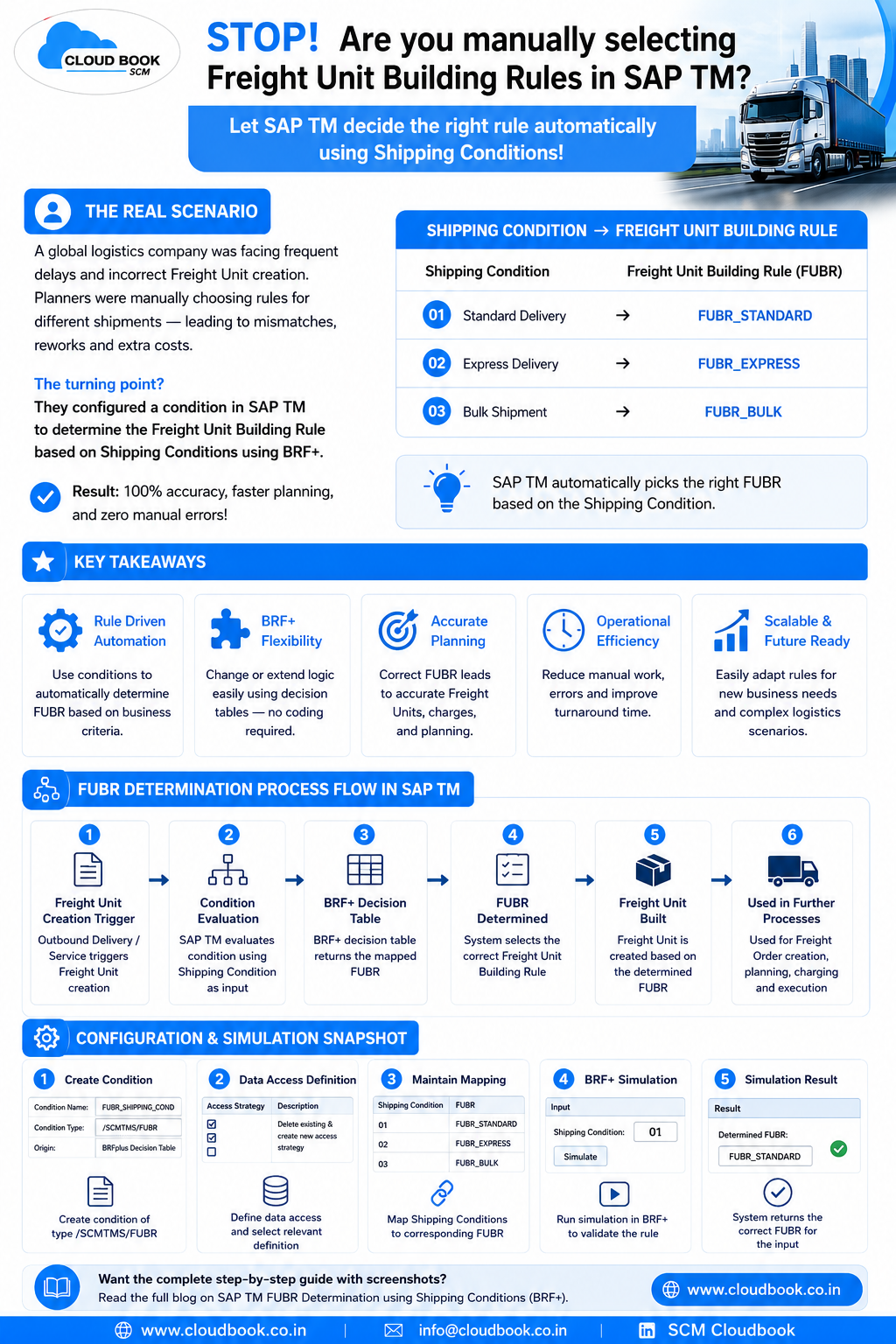
In a logistics environment, companies often use different Freight Unit Building Rules depending on how goods are shipped.
For example:
| Shipping Condition | Business Meaning | Freight Unit Building Rule |
|---|---|---|
| 01 | Standard Delivery | FUBR_STANDARD |
| 02 | Express Delivery | FUBR_EXPRESS |
| 03 | Bulk Shipment | FUBR_BULK |
Using condition-based logic, SAP TM can automatically select the appropriate FUBR during freight unit creation.
𝐏𝐫𝐨𝐜𝐞𝐬𝐬 𝐅𝐥𝐨𝐰
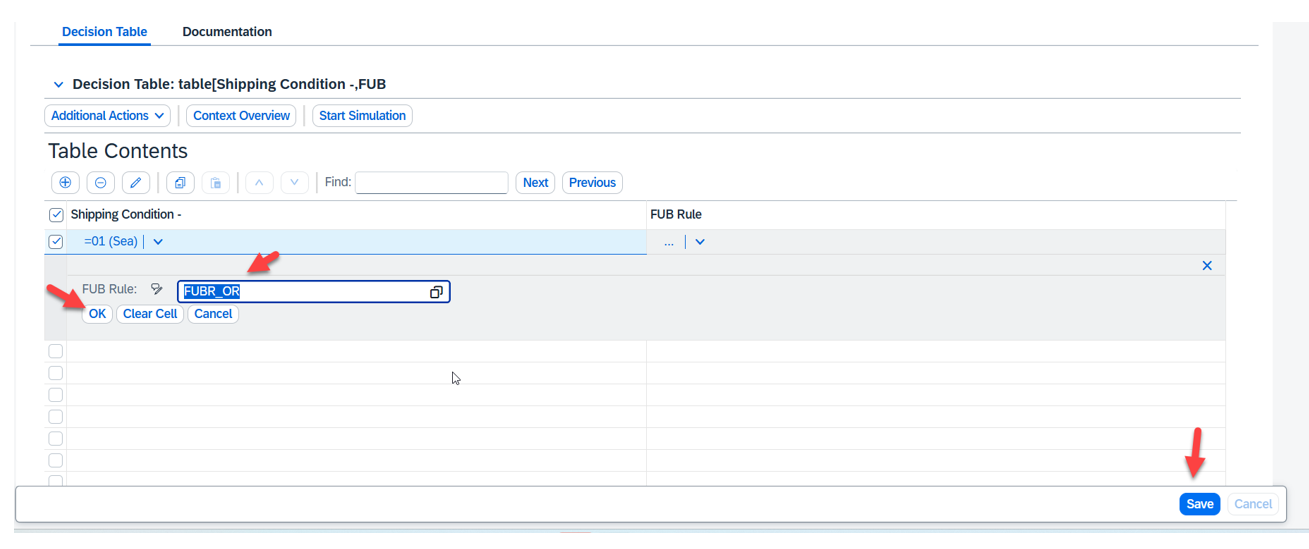
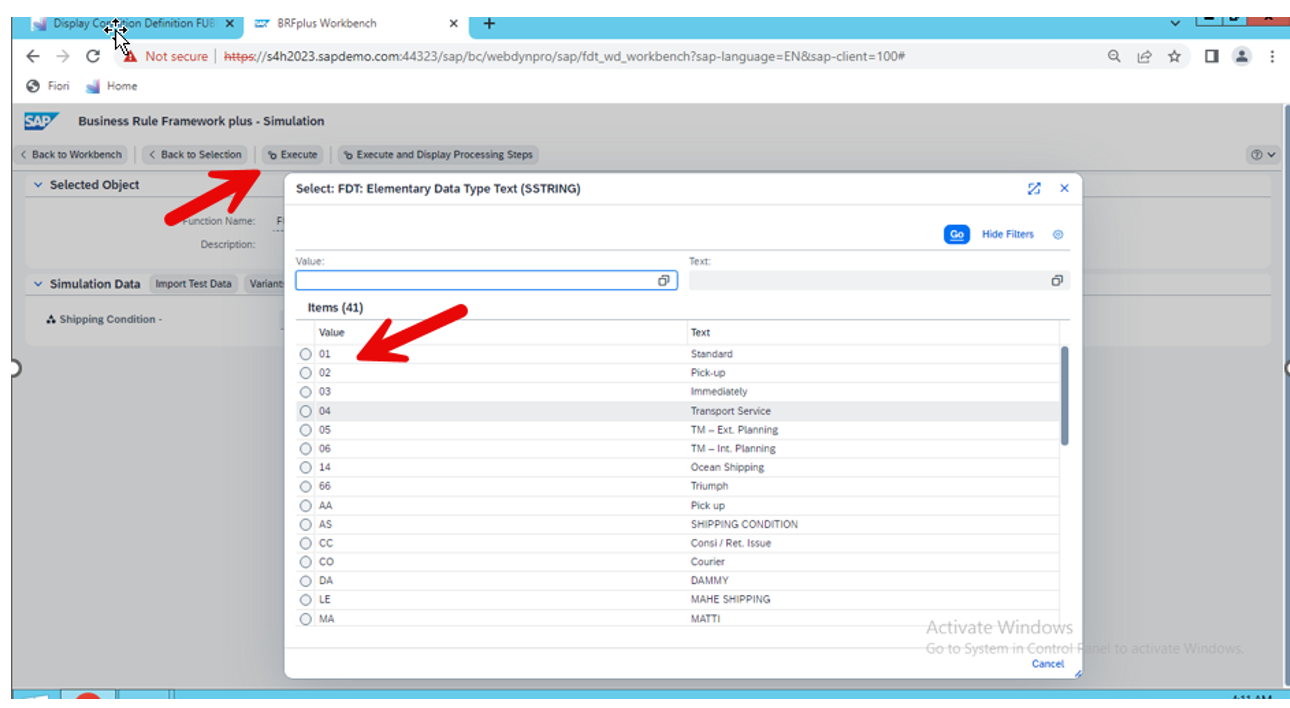
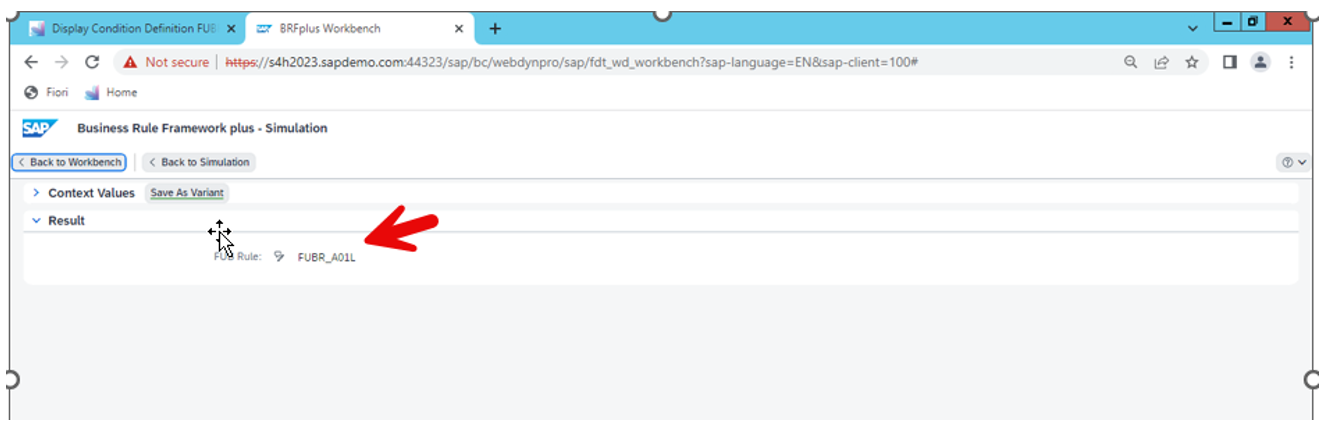
Sales Order ⇨ Outbound delivery ⇨ Shipping Condition available on Delivery ⇨ Condition Technique triggered (/SCMTMS/FUBR) ⇨ BRF+ Decision Table evaluates Shipping Condition ⇨ Freight Unit Building Rule determined ⇨ Freight Unit created ⇨ Transportation Planning ⇨ Freight Order Creation
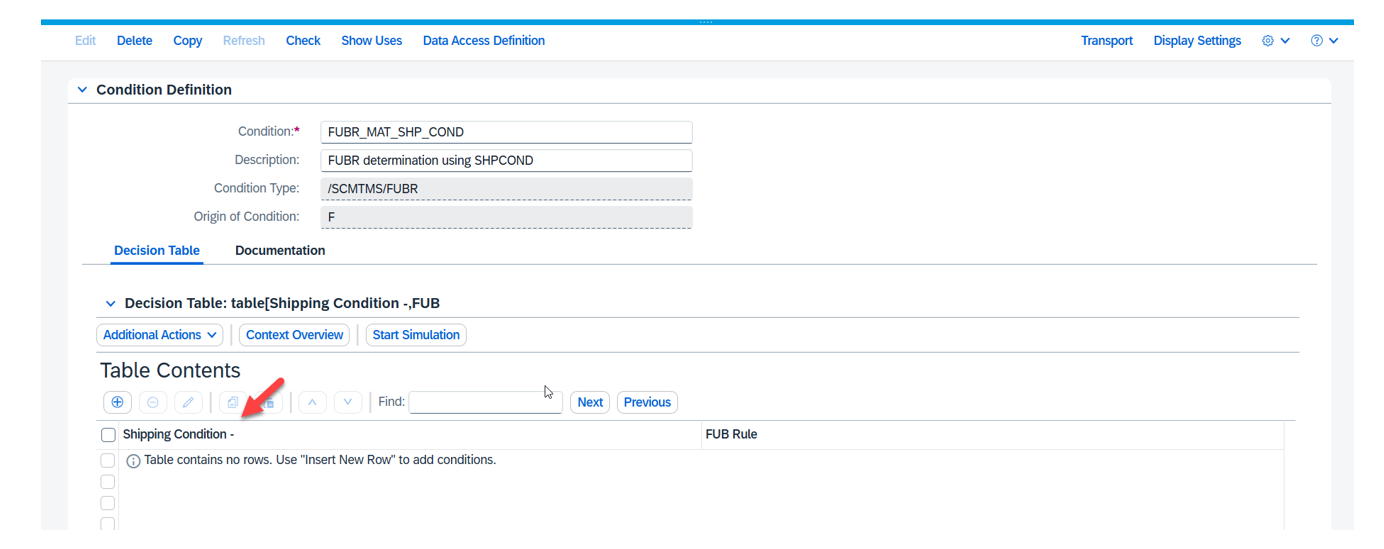
Step 1: Create a Condition for FUBR Determination
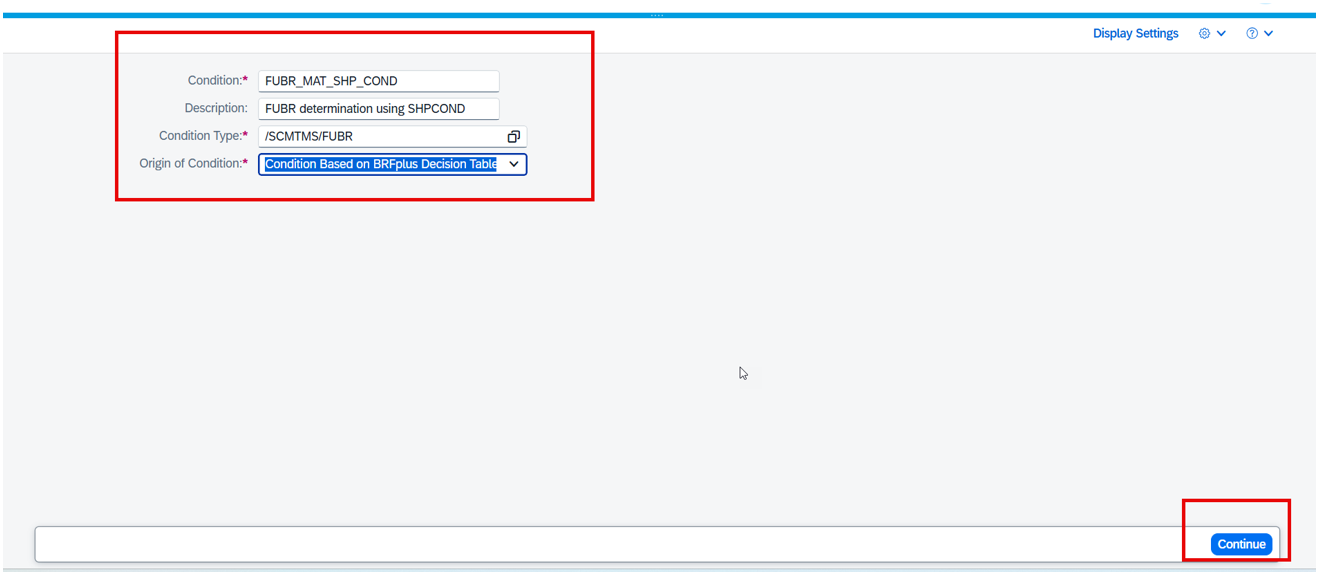
Navigate to the Create Condition App in SAP TM.
Provide the following details:
-
Condition Name: Example –
FUBR_SHIPPING_COND -
Description: Determine FUBR based on Shipping Condition
-
Condition Type:
/SCMTMS/FUBR -
Origin of Condition:
Condition Based on BRFplus Decision Table
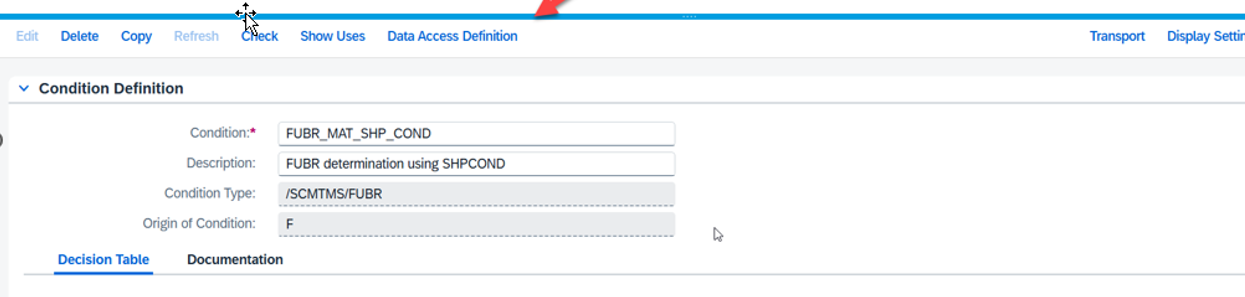
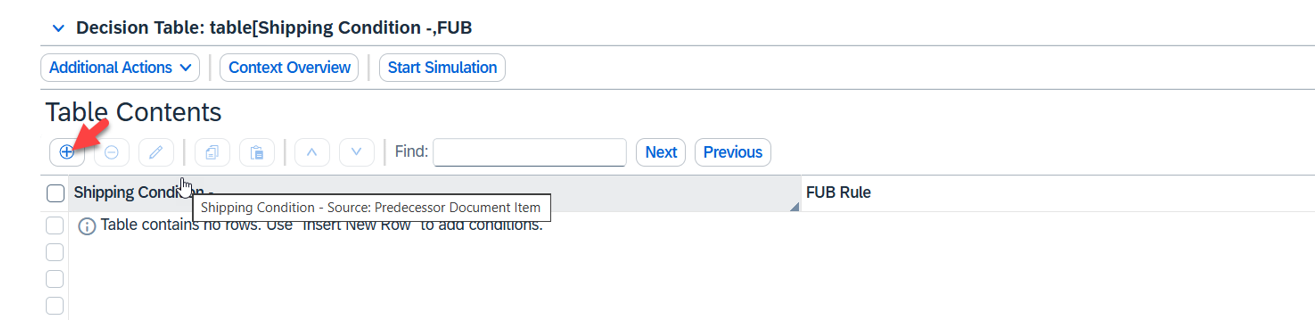
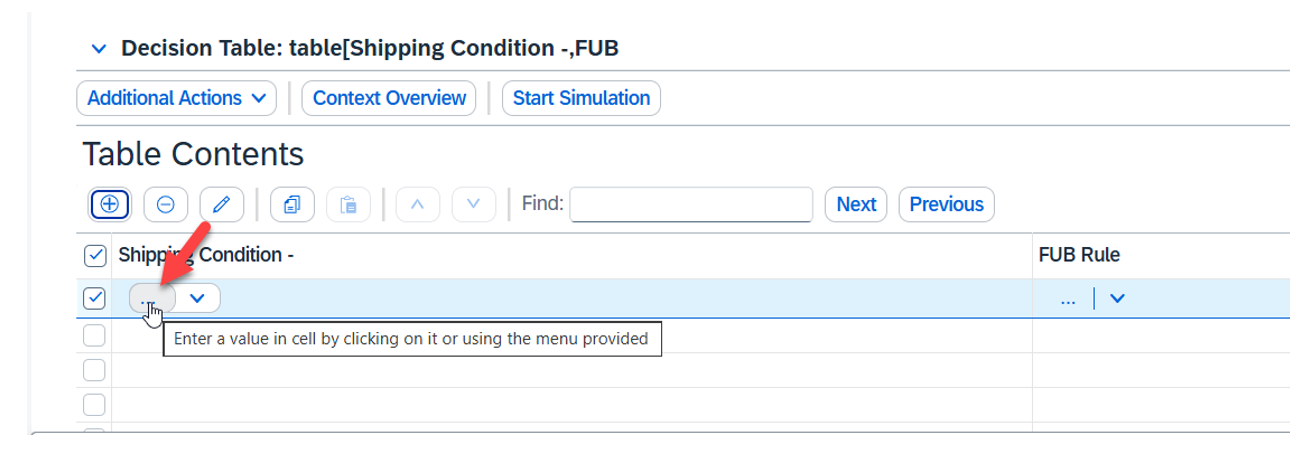
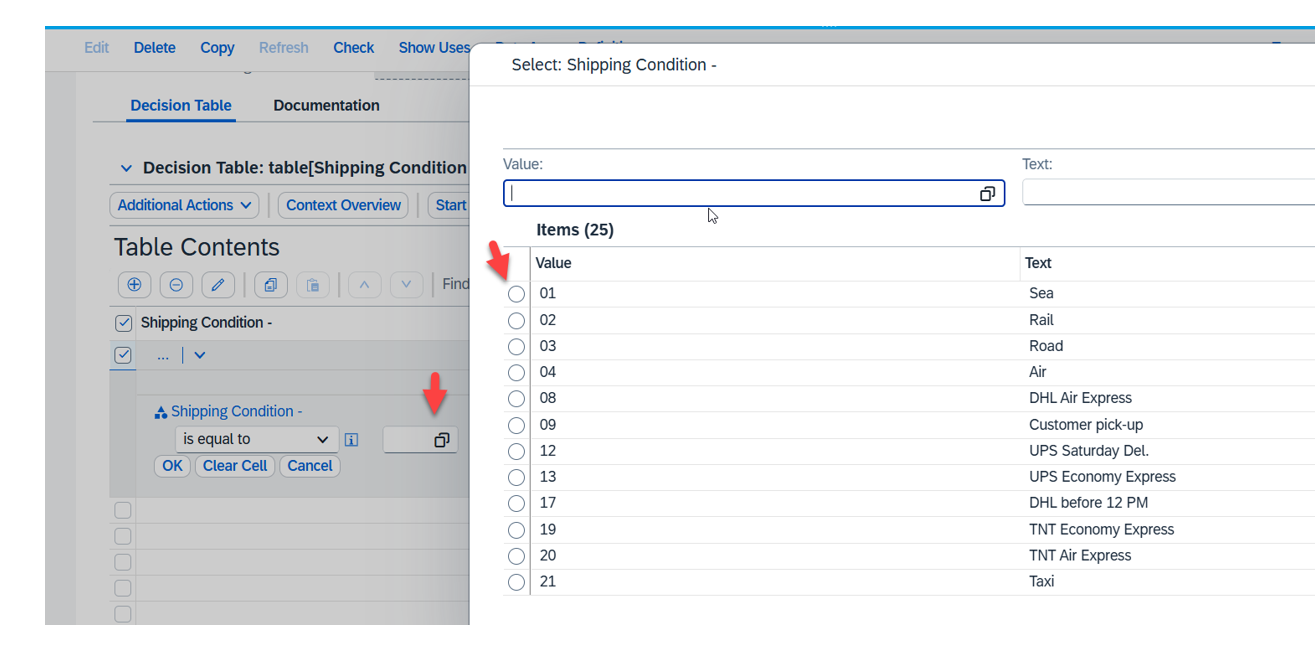
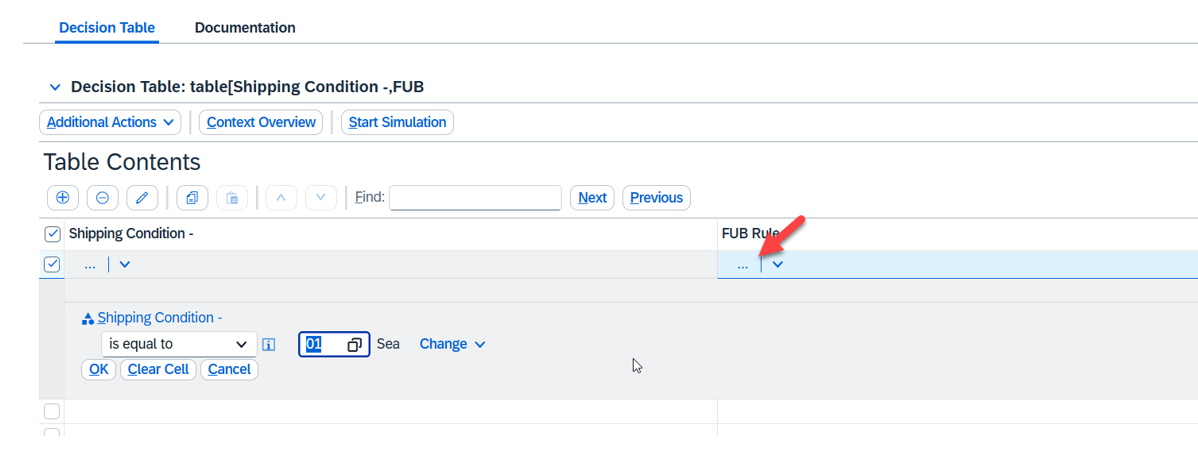
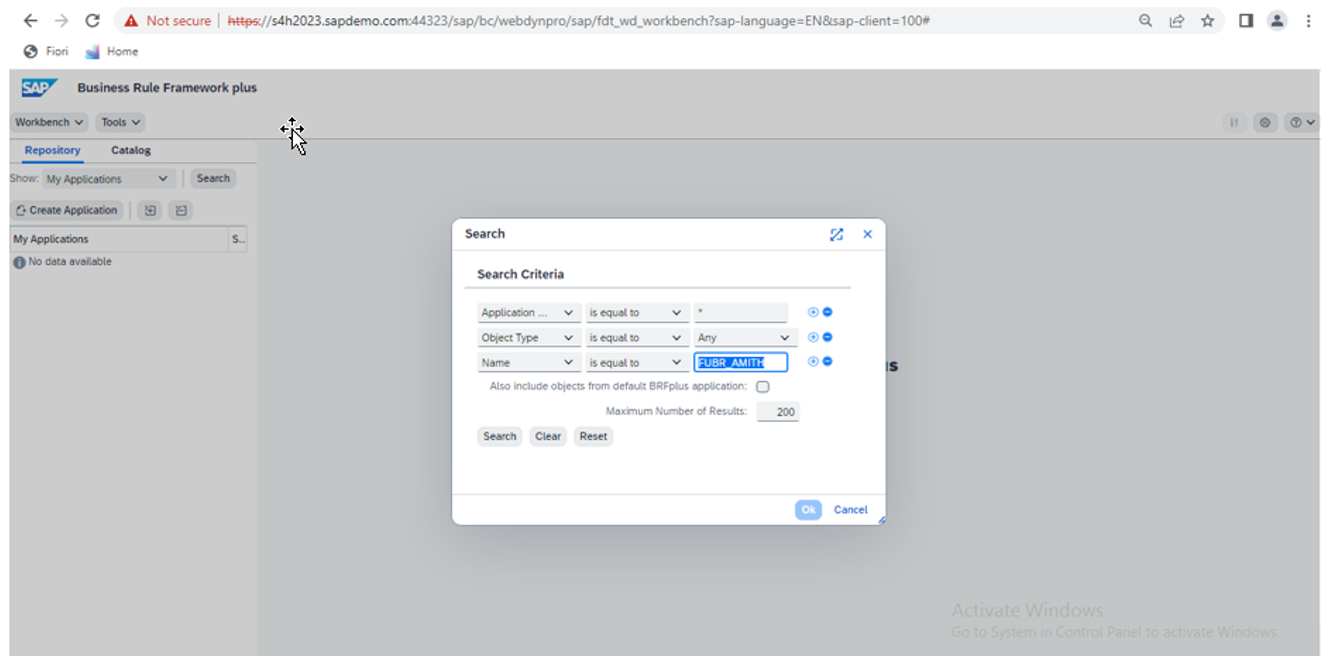
This configuration allows the system to use BRF+ decision tables for automated rule evaluation.